Author Archives: Dave Tracy

LearnPPT now offering Presentation Services

The time and effort it takes to create a professional business presentation may not seem economical.  For instance, management consultants, paid $1000+ a day, spend a majority of their time cranking our PowerPoint presentations.  Though clients would rather have their consultants spend this time doing research and more analytical work, we all recognize the necessity of solid presentations to effectively communicate gained insights and recommendations.  The same issue holds true for managers, executives, and well paid analysts.

To help alleviate the economic resource burden of creating presentations, McKinsey established a Visual Graphics group for the sole purpose of cranking out presentations for its consulting arm.  McKinsey management consultants would draw out slides on paper, scan and send them to Visual Graphics.  Visual Graphics would then convert the scanned images into PowerPoint slides.

While you or your organization may not currently have a PowerPoint conversion team like McKinsey, now you can with LearnPPT’s new presentation services offering.  Check it out here:

Presentation Serviceshttp://learnppt.com/presentation-services.php

Draw and email your slides to LearnPPT and they will convert it to PowerPoint slide format within 1 business day.  They have a team of experienced PowerPoint presentation experts–in fact, hired directly from McKinsey’s Visual Graphic organization.

View their site to see samples and a break down other related presentation services.

Powerpointing – How to Create a Diamond Diagram

A diamond diagram or a segment diagram is a very useful and flexible diagram.  You can use them to illustrate anything that has multiple contributing components.  The powerpointing technique taught in this tutorial is a great one to have in your growing PowerPoint diagramming skill set.

Here are some examples of situations that can be intuitively portrayed using diamond diagrams:

  • Multi-departmental collaboration – Product X’s product launch requires input from Product Development, Marketing, Sales, and Partners
  • Multi-pronged sales strategy – Product X’s go-to-market strategy includes Selling to China, Moving from SMB to Enterprise, Cross-selling with Product Y, Attacking the Financial Vertical, and Attacking the Healthcare Vertical
  • A product’s value proposition – Product X’s value proposition includes Water Conservation, Energy Savings, Durability, Compact Size, and Time Savings.

Now, there’s an incredibly easy way to create a Diamond Diagram in PowerPoint!

First, create a chart in PowerPoint and change the ‘Chart Type’ to ‘Radar Chart.’
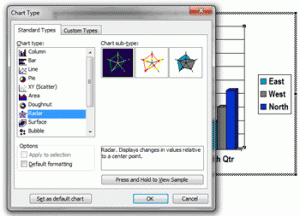

Next, modify the chart values.  First, only leave 2 rows of data.  Then, create as many columns as you would like segments.  In our example, we will create a diamond with 5 segments.  For the first row, set all the values to 1.  For the second, set all the values to 2.  UPDATE – The screenshot below is from PowerPoint 2003.  For PowerPoint 2007 and 2010, the datasheet format is vertical–not horizontal (like you see in the image below). Therefore, you must input your values vertically (i.e. 1s and 2s in the same columns, not rows)
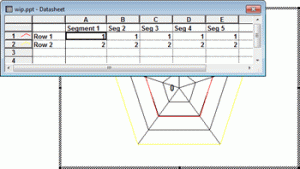

Next, change the line color for both of the data lines to black.  Then, format the chart such that you remove the axis labels and set both the major and minor units to 1.

Your chart should now look like this.  We pretty much have it.


I’m going to do some formatting, including replacing the inner section with a Pentagon AutoShape.

There we have it — a quick and easy powerpointing trick to create a Diamond or Segment Diagram using Radar Charts in PowerPoint.

Here are a couple more Diamond Diagrams with a different number of sides:

You can download the above slides from LearnPPT @ http://learnppt.com/downloads/diamonds/

If you are looking a larger variety of Segment Powerpoint templates, pre-built and ready to use, check out the Relationship, Segment, and Network Diagrams PowerPoint Pack:
http://learnppt.com/powerpoint/13_Relationship%2C-Segment%2C-%26-Network-Diagrams.php

Also, you can download a free PowerPoint plugin called Flevy Tools that creates commonly used consulting diagrams here: http://flevy.com/powerpoint-plugin.  Flevy Tools allows you to dynamically generate Gantt Charts, Harvey Ball diagrams, approach diagrams, and other diagrams.  For the time being, it’s a completely free download.

Questions, thoughts, concerns?  Go to my site (learnppt.com) and shoot me an email.

For pre-made PowerPoint diagrams used in business presentations and other powerpointing needs, browse our library here: learnppt.com/powerpoint/.  These diagrams were professionally designed by management consultants. Give your presentations the look and feel of a final product made by McKinsey, BCG, Bain, Booz Allen, Deloitte, or any of the top consulting firms.

The Only Business Presentation Book You Will Need

I am excited to announce the 2nd version of Become a PowerPoint Guru was released this morning.  What started as just a PowerPoint eBook, ‘Become a PowerPoint Guru’ has grown to be much more than that, since it now includes 2 very useful PowerPoint documents: the Business Slides Reference Pack and the eBook PowerPoint Toolkit.

The book itself discusses the techniques developed and used by strategy consulting firms to create effective business presentations using PowerPoint.  Many of the diagramming techniques have been highlighted in tutorials on this blog.  But, beyond just diagramming, the book teaches storyboarding, i.e. the art of weaving a compelling story through the presentation.  Topics here include Barbara Minto’s Pyramid Principle, MECE, and others; many, of which, are taught in top MBA programs, including the likes of Harvard and Stanford.

The Business Slides Reference Pack (preview here) contains 60+ slides taken directly from executive presentations made by management consultants.  The original audience range from execs of medium sized businesses up to Fortune 50 companies and cover a variety of different types of slide content, PowerPoint diagrams usages, and powerpointing techniques.  You won’t be able to find any other download similar to this offered on any other site.

The eBook PowerPoint Toolkit (preview here) is a comprehensive collection of ready to use, customizable PowerPoint templates.  This was included in the original book, but with the 2nd edition’s release, this document has already been expanded to include additional PowerPoint diagrams.

As this entry’s subject boldly proclaims, this is the only business presentation book you will ever need.  The book’s content arms you with the knowledge and the accompanying PowerPoint decks arm you with additional tools to supplement that knowledge.  Check it out @ http://learnppt.com.